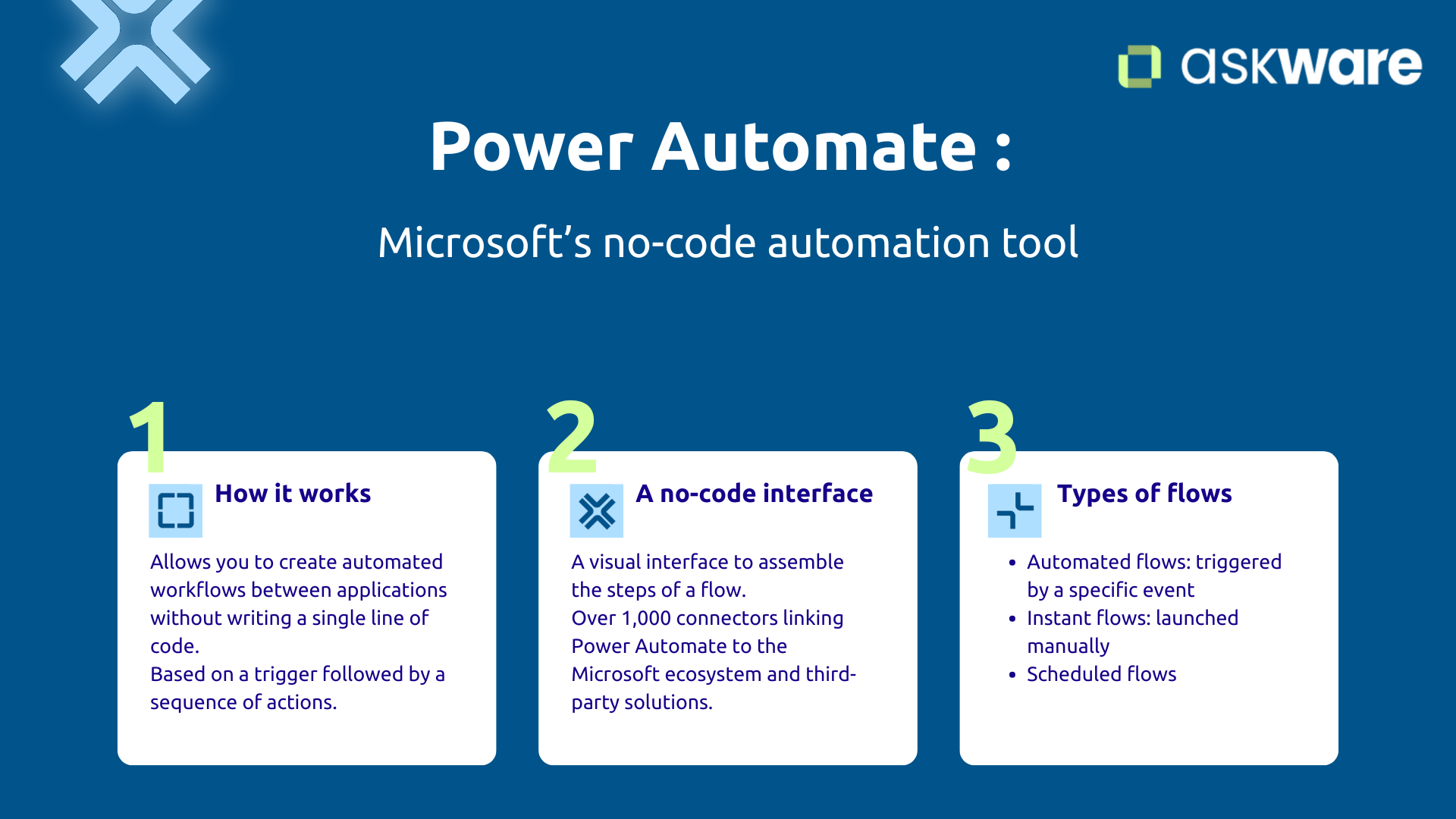
Power Automate: Microsoft's no-code automation tool
Power Automate: explanation & operation
Power Automate, formerly Microsoft Flow, is Microsoft's process automation service. It is part of the Power Platform and allows you to create automatic workflows between applications. without writing a single line of code.
Power Automate works like Zapier (for which it is the Microsoft alternative), but with a particularly powerful native integration to connect Office 365, Dynamics 365, Azure and business applications within the same secure environment.
The basic logic is based on a very accessible principle. First you define a trigger (when X happens), then you describe shares (so do Y, Z).
For example: when you receive an email with an attachment, Power Automate automatically saves that attachment in OneDrive and notifies your team in Teams.
A no-code interface and more than 1,000 connectors
Power Automate is based on a visual interface where you put the steps in a flow together like blocks. You select your triggers from the proposed list (for example, receiving an email, adding a file, submitting a form, receiving a message in Teams).
You then add the shares corresponding: send an email, create a record in a database, update an item, launch an approval, publish a message, generate a document for example. The automation of repetitive tasks enabled by Power Automate is broad.
You can also integrate conditions to carry out actions only if this criterion is met and loops to repeat an action for each item in a list.
Everything is supported by a library of more than 1,000 connectors which connects Power Automate to the Microsoft ecosystem (Outlook, SharePoint, Teams, Teams, OneDrive, Excel, Power BI, Dynamics 365) but also numerous third-party solutions such as Salesforce, SAP, SAP, Dropbox or Slack.
Power Automate flow types
Power Automate offers three main families of flows according to your needs:
- automated flows : which are triggered automatically following a specific event, such as receiving a new email or adding a file.
- instant flows or button flow: which are launched manually, for example via a click on a button in a mobile application.
- planned flows : which run according to a defined schedule, for example every Monday at 9 am or every 1st of the month.
Power Automate is like a personal assistant that continuously monitors what is happening in your tools and executes your repetitive tasks without ever getting tired of it!
Typical automation gains: how much time can you really save?
The benefits of Power Automate are not limited to comfort. The gains are very concrete and measurable. Studies around RPA (robotic process automation) with Microsoft frequently show gains in 10 hours on average per employee per year for each automated process. Indeed, even for average use cases where automating the recurring task only saves a few minutes in the moment, the recurrence of the task makes it possible to accumulate several hours saved at the end of the year.
Let's take a few typical examples. Automating email reminders for unpaid invoices or pending requests eliminates several hours of manual work per month. The automatic synchronization of data between your CRM and your ERP eliminates the time spent making double entries. The automatic validation of simple cases, such as expense reports under a certain amount, frees up time to process complex cases.
Beyond time, there is a major qualitative impact : fewer input errors or human errors, fewer oversights thanks to automatic reminders and less operational stress. Automation with Power Automate is not a gimmick: it's real, measurable time savings and a visible reduction in operational mental load.
HR automations: save time on onboarding, time off and internal processes
Automated onboarding: welcoming newcomers without forgetting anything
Integration of a new collaborator involves a cascade of actions that easily takes 2 to 3 hours per person, with the risk of forgetting an important step, which directly impacts the experience of the new collaborator.
With Power Automate, as soon as a new collaborator is created in your HRIS or added to a SharePoint list, everything starts automatically:
- A personal OneDrive folder is created,
- A personalized welcome email is sent with the checklist of documents to be provided, useful links and all the information you want to transmit,
- Tasks are generated for the manager, HR and IT to prepare the position, create accounts, prepare the contract...
- The day before his arrival, an email reminds him of practical information.
The result? Between 2 and 3 hours saved by onboarding, a homogeneous process within the company and a new employee who feels expected rather than “added to the system” at the last minute. Automation is all the more interesting when integrations accelerate because the risk of being forgotten increases.
Management of leaves and absences: streamline requests and validations
When an employee submits their Request for leave via a Microsoft Forms or Power Apps form, it is automatically sent to the manager with Approve and Reject buttons.
Automation can include a condition. So, if the manager approves, the Outlook team calendar is instantly updated, the tracking table as well, and the collaborator receives a notification.
This automation allows:
- To save 1 to 2 hours per week for managers,
- To limit the risk of error with automatic updates,
- Better visibility and reliability for the HR department, which must manage payroll variables.
Internal HR processes: expense reports and administrative requests
With Power Automate, you can create the automation of a workflow whose trigger is the submission of a Expense report less than a certain amount. In this case, Power Automate will manage the entire process: automatic validation, insertion of the expense report into the tracking file and notification to accounting.
For administrative requests, like the Request for employer certificates, a form triggers the automatic generation of a Word document based on one of your templates and the sending by email to the requester and then archiving it in SharePoint. What took several minutes is done instantly and the HR mailbox is relieved of these small daily requests.
Finance automations: speed up validations and accounting entries
Validation and processing of supplier invoices
Invoice processing supplier easily represents 30 to 40 minutes of manual work: extracting information, entering it into the system, sending for validation, then accounting. Power Automate can play a role in pre-entry and control assistant in all the information flows that the finance team manages.
As soon as a PDF invoice arrives in a dedicated mailbox or is deposited in SharePoint, Power Automate starts. Thanks to AI Builder, key data is extracted automatically (supplier, amount, date, invoice number). This information is fed into a monitoring table and then the approval workflow is launched: the request is sent to the right manager according to the amount and the cost center.
The result? Between 30 and 40 minutes saved per invoice, complete traceability and the end of invoices that are lying around waiting for validation.
Budget monitoring and alerts
One Planned flow can check the progress of each budget every week and automatically trigger an alert as soon as a threshold is reached (for example 80% consumption).
To the monthly close, Power Automate can compile data from multiple sources, generate a consolidated file, or feed into Power BI before sending the report to CODIR. What took 3 to 4 hours is done automatically and makes it possible to gain more proactivity in piloting.
Reconciliations and automatic checks
For the bank reconciliations, when a CSV bank statement is filed in SharePoint, Power Automate automatically compares the lines with the accounting entries, identifies discrepancies, and generates an anomaly report.
This automation saves 2 to 3 hours per week, allowing controllers to focus on analysis rather than manual comparison.
IT automations/Support: improving service to users
Management of user requests
Each ticket that arrives must be sorted, categorized, assigned to the correct technician, and an acknowledgement of receipt sent to the requester. This manual routing takes 10 to 15 minutes per ticket.
Power Automate automates this process as soon as the ticket is submitted regardless of the channel used. The feed analyzes the keywords for categorize the ticket (hardware, software, or access for example), the assign to the right technician, create a record with a unique number in the tracking tool and Send a receipt of reception. It is also possible to create a portal with Power Pages for users to view the status of their ticket.
In addition, automatic reminders are sent if a ticket remains open for too long, with escalation to the manager if necessary. Automating this business process frees up time on each ticket in terms of sorting and improves the quality of service because it reduces the number of forgotten tickets.
Provisioning and access management
For the onboarding a new employee, Power Automate can help the IT team by calling Microsoft Graph APIs to automatically create the Microsoft 365 account, assign licenses, and add the person to the right Teams and SharePoint groups.
Conversely, during a starting, the flow manages offboarding: deactivating the account on the scheduled release date, transferring emails, archiving OneDrive.
This automation improves security while drastically reducing the workload.
Proactive monitoring and alerts
Power Automate can periodically check the Status of some critical services via APIs or webhooks at the desired frequency.
In the event of an anomaly, the flow instantly triggers an alert in Teams and automatically creates an incident ticket. This proactive approach often solves a problem before users even notice it.
Cross-functional automations: useful for all services
Document management and archiving
A feed can monitor your inbox and automatically detect emails containing certain keywords such as “invoice”, “contract” or “order”. As soon as an email matches, the flow extracts the attachments, saves them in the correct SharePoint or OneDrive folder with a standard nomenclature and moves the email into a “Processed” folder.
For archiving, Power Automate can identify documents that haven't been modified for several months in SharePoint, move them to an “Archives” library, and notify owners. Document spaces are cleaner and reduce the time lost looking for information.
Smart notifications and reminders
A scheduled flow checks an Excel file or a SharePoint list every day containing important deadlines related to contracts, certifications, insurance, birthdays or even internal events and automatically triggers reminders to 30 days, 7 days and D-1 to the managers.
These reminders avoid costly oversights and strengthen the organization's culture.
Synchronizing data between applications
For the data sync, when a new customer is created in Dynamics 365 Sales, Power Automate can automatically create or update the customer record in Business Central, synchronizing all the necessary information.
This sync eliminates double entries and ensures that all teams are working with the most recent data. This approach fits perfectly into the logic of unifying processes that Dynamics 365 allows.
.png)
How do you create your first Power Automate automation?
Identify the right use case to get started
For a first automation, aim for a Quick win. The automated task must meet four criteria:
- Repetitive : at least weekly,
- Simple : with few exceptions,
- Chronophage : ≥ 30 min/cumulative week,
- Low added value.
Some perfect examples to get started: automatically save email attachments in OneDrive, send a Teams notification as soon as a form is filled out, or copy an Excel line to SharePoint. These automations quickly demonstrate the value of the tool.
Create a flow from a template
Power Automate offers hundreds of ready-to-use templates. Templates do 80% of the work, all you have to do is adapt the remaining 20%.
All you have to do is go to make.powerautomate.com, click on “Templates” and search for a template by keywords.
You select the template that corresponds to your needs, you connect it to your applications and then you customize the parameters (email addresses, folders, lists, messages according to the automation created).
With Copilot integrated, you can even describe your need in natural language and Power Automate automatically suggests a basic flow to adjust.
Test, iterate, and extend
Start with test your flow on a small perimeter before deploying it. Monitor the execution history to identify errors and refine logic. Once the flow works, gradually add conditions to handle special cases and duplicate it for other teams with similar needs.
Document each flow systematically: objective, trigger, logic, owners. This documentation facilitates maintenance and allows others to improve your flows. The important thing is not to look for the perfect flow at first try: you start simple, you measure the impact and time savings associated with automation, you improve and you extend.
.png)
Power Automate is not a complex tool reserved for IT departments. It is the accessible solution that allows each support function to recover hours each week. by automating repetitive tasks. Whether you are HR, finance, IT or another function, dozens of simple automations already exist, tested by thousands of companies and are just waiting for you to be implemented.
Every automation, no matter how small, builds up to create significant gains: several hours per week recovered, fewer input errors, fewer oversights, and less operational stress. Your teams can finally focus on what really matters: tasks with high added value, strategic thinking, human support.
The key to getting started? Start small, with an obvious quick win, test on a small perimeter, then gradually expand. Microsoft provides hundreds of ready-to-use templates, and Copilot makes it easy to create by allowing you to describe your needs in natural language.
Askware supports you at each stage: identifying use cases with the greatest impact, creating your first automations with skills transfer, training your teams, setting up a Center of Excellence, and governance to maintain quality. Because automation cannot be improvised, it is built with method and expertise.