Entra ID: Microsoft's identity management system
What is Microsoft Entra ID (ex Azure Active Directory)?
Microsoft Entra ID is Microsoft's cloud identity and access management (IAM) service. Concretely, it is he who authenticates each user, manages identities and controls who can access what in your digital environment.
Think of Entra ID as the caretaker of a building: it verifies the identity of each person and decides who can access which floors. Except that here, the “floors” are your applications: Microsoft 365, all the modules Dynamics 365, Power Platform, all your Azure resources like Azure DevOps and even third-party applications (via SSO).
Any organization that uses Microsoft 365 already has Entra ID. It is included in the licenses. So the real question is not “should it be adopted?” but “how do I set it up properly to protect my organization?”
Entra ID vs Active Directory on-premise: what's the difference?
This confusion comes up frequently: is Entra ID vs Active Directory the same thing? No They are two different and complementary systems. It is precisely because the old name Entra ID (Azure Active Directory) created confusion that its name has changed.
Active Directory on-premise manages Windows machines, file shares, and local network authentication. It runs on your internal servers, uses protocols like LDAP and Kerberos, and requires Windows Server domain controllers to manage it.
Entra ID Microsoft is a modern cloud service designed for SaaS applications and remote work. It lives in Azure, uses modern web protocols (SAML, OAuth 2.0, OpenID Connect), and is managed via a web portal. Its main use is cloud authentication for Microsoft 365, Dynamics 365, and all SaaS applications.
.png)
In a hybrid environment (cloud and on-premise), the two solutions coexist: Active Directory on-premise for legacy systems, Entra ID for the cloud and Azure AD Connect to automatically synchronize identities between the two worlds. For 100% cloud organizations, Entra ID alone is enough. No need for Active Directory servers to maintain.
The central role of Entra ID in the Microsoft ecosystem
Entra ID is not just a user directory. It's the keystone of your Microsoft ecosystem. This centralization provides four major benefits:
- Unified identity with one account for everything,
- The Single Sign-On (Microsoft SSO) with one-time login to access all integrated applications,
- One central checkpoint where all the authentications go through Entra ID,
- One simplified governance allowing users, groups, and rights to be managed from one place.
In concrete terms, this allows an employee who connects to Windows with their Entra ID account to automatically access Teams, Outlook, SharePoint, Dynamics 365 Sales, Power BI... Without having to re-enter your password, without friction and with maximum security.
Entra ID Key Concepts: Authentication, Authorization, and Security
Authentication vs Authorization: Understanding the Difference
To master Entra ID, you need to understand two fundamental concepts:
- Authentication Respond to “Who are you?” : it is the verification of your identity via password, MFA (multi-factor authentication), biometrics or certificate.
- The authorization Respond to “What can you do?” : once your identity has been verified, Entra ID verifies your access rights to the various resources according to your roles, groups and permissions.
Thus, you log in with your email and validate the MFA on your smartphone, which allows Entra ID to authenticate you. Then you try to access a confidential SharePoint document, Entra ID checks if you are part of the authorized group. If this is the case, you are accessing the document in question. A proven identity does not mean automatic access to everything.
SSO (Single Sign-On): one authentication, all accesses
The Single Sign-On transforms the daily experience. You log in once and automatically access all built-in applications. Entra ID delivers a secure authentication token recognized by all Microsoft applications and the thousands of third-party applications in the Entra ID gallery (such as Salesforce or Slack).
The benefits are threefold:
- One user experience improved with only one password to remember and less friction to access business applications,
- One enhanced security with less risk of reusing weak passwords,
- One productivity increased with a saving of time when moving from one application to another and fewer support tickets for “forgotten password”.
MFA (Multi-Factor Authentication): strengthening security
According to Microsoft, 99.2% of account compromise attacks are blocked by the MFA. It is the most effective protection. MFA refers to authentication that requires at least two factors. Generally it is the password and another complementary method.
There are 3 types of factors:
- Factors that the user knows: their password
- Hardware factors: smartphone or security key
- Biometric factors: using user fingerprints or facial recognition.
Entra ID offers several methods. The recommended method is Microsoft Authenticator app (which combines facial recognition and sends a code to the application on the user's smartphone). But it is possible to set up other mechanisms: SMS, phone call, physical security keys (FIDO2) and Windows Hello for biometrics.
The MFA is active through policies Conditional Access and can be imposed on all users. Today, operationally, MFA is a minimum standard to guarantee the security of your company and its data.
Conditional Access: intelligent access control
Azure Conditional Access goes beyond MFA with policies that adapt security to the context. The system automatically assesses:
- Who is trying to connect,
- For which application,
- From where and what country,
- From what type of device (managed or personal),
- What level of risk (is the behavior suspicious?),
Depending on the responses, Entra ID may authorize, block completely, require additional MFA, or require a compliant device. The Entra ID Protection feature uses AI to detect suspicious behavior.
You can define different policies such as: “If connecting from abroad” then “require MFA” or “If high-risk user detected” then “block and force password change”.
This allows you to have a adaptive security : strict when the context is suspicious, flexible when the context is safe. Thus, a sales representative at the head office benefits from a smooth connection. The same from an Internet café in China triggers an automatic blocking and an additional validation request.
.png)
How Entra ID secures the Microsoft ecosystem
Native integration with Microsoft 365, Dynamics 365, and Azure
The major advantage of Entra ID is its deep integration with all Microsoft services. Entra ID allows the authentication of all users of Microsoft 365 (Teams, Outlook, SharePoint, OneDrive...), manages the allocation of licenses and applies conditional access policies per application.
For Dynamics 365, the authentication of all modules is based on Entra ID. Users are automatically synchronized and roles are managed from the Entra portal. For Power Platform, Power Apps, Power Automate and Power BI use Entra ID for authentication and secure sharing For Azure, Entra ID controls access to all resources via RBAC. Each Azure service is protected by Entra ID.
This unification means you manage identity security in the cloud. One time only in Entra ID and it applies everywhere. Deactivate an account and the user instantly loses access to all Microsoft resources.
Managing third party applications via the Entra ID gallery
Entra ID app gallery contains more than 5000 pre-integrated applications: Salesforce, Slack, Zoom, Dropbox, AWS, Google Workspace. SSO extends to all of these applications with a single Entra ID password.
The automatic provisioning allows Entra ID to automatically create and delete accounts in these third-party applications. A new user created in Entra ID automatically triggers the creation of their Salesforce and Slack accounts with the right rights.
Centralized governance provides complete visibility on who has access to what, Microsoft AND third parties, from a single console. Entra ID thus becomes the central identity system for your entire organization.
Managing devices with Entra ID and Intune
Entra ID also manages the identity of devices, it is not limited to users. PCs, smartphones, and tablets can be registered in Entra ID.
Windows PCs can be directly joined to Entra ID using Entra ID Join. Combined with Microsoft Intune, Entra ID checks device compliance: encryption, updates, active antivirus.
You can create policies with Conditional Access like “Allow access to Dynamics 365 only from managed and compliant devices.” This double verification (user identity AND device) considerably reinforces security.
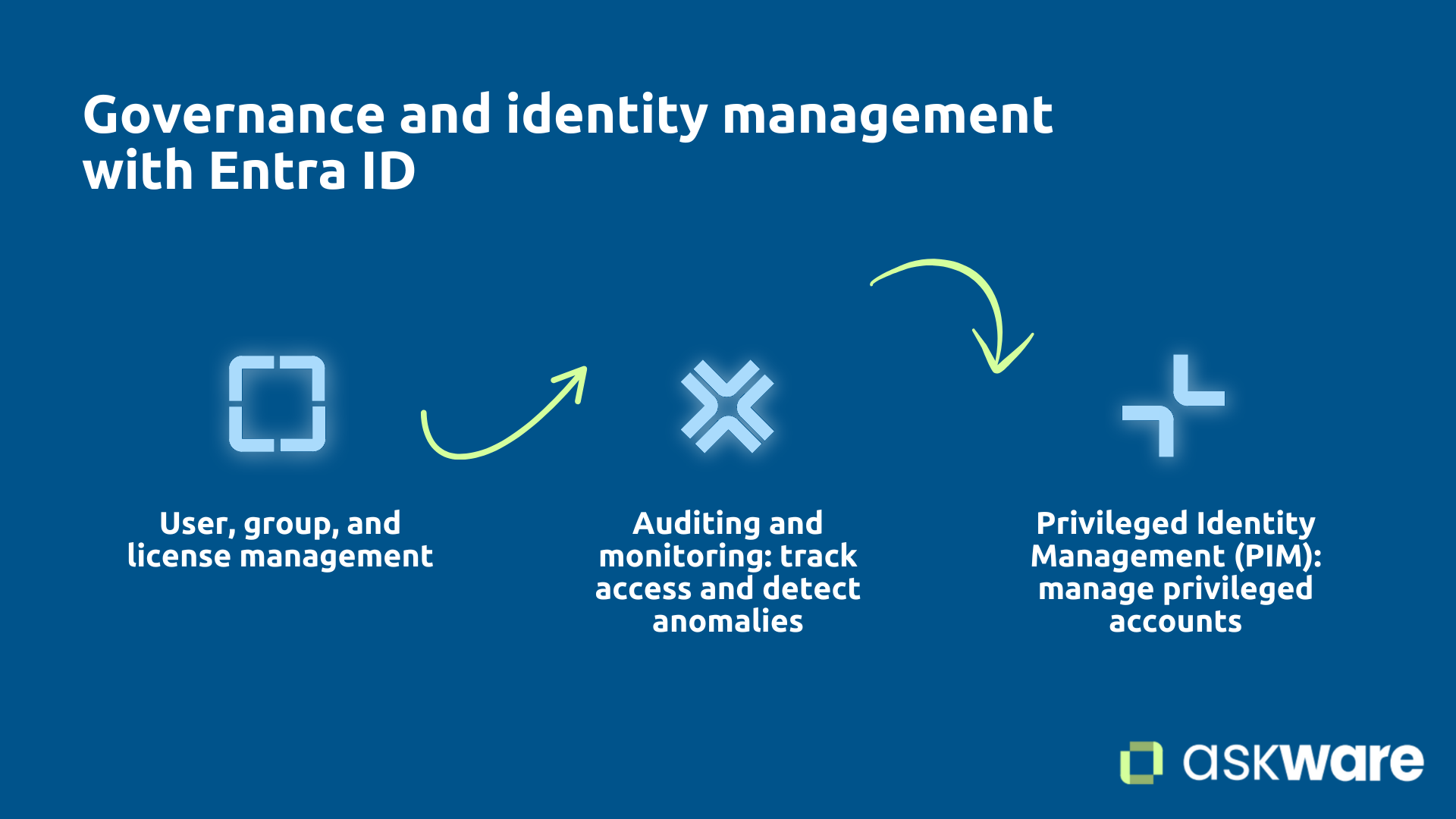
Governance and identity management with Entra ID
Managing Users, Groups, and Licenses
Entra ID centralizes all the governance Identities of your organization. User management allows you to create, modify, and delete accounts from the Entra portal. In a hybrid environment, users are automatically synchronized from Active Directory on-premise via Azure AD Connect.
Group management is particularly powerful. Security groups control access to applications, while Microsoft 365 groups automatically create a Teams team, a shared mailbox, and a SharePoint site. Dynamic groups allow fully automatic membership according to defined criteria: all users of the “Commercial” department automatically join the “Sales Team” group.
Microsoft 365 and Dynamics 365 licensing is done via Entra ID, manually or automatically by group. You can manage access by groups rather than individually, automate with dynamic groups, and immediately deactivate the accounts of people who leave the organization.
Audit and monitoring: trace accesses and detect anomalies
Continuous auditing and monitoring are essential to maintain safety. Entra ID records all authentications, user changes, and application access. These detailed logs make it possible to quickly detect suspicious behavior.
Entra ID Protection uses artificial intelligence to automatically identify anomalous behaviors: geographically impossible connections, unrealistic travel speeds, malicious IP addresses. The system may automatically block these attempts or require additional validation.
Real-time alerts notify your IT team in case of suspicious activity: multiple failed login attempts, access from a risky country, massive permission changes. For advanced analysis, logs can be sent to Azure Monitor or Microsoft Sentinel for sophisticated correlations.
Some regulations (RGPD, ISO 27001, SOC 2) require tracking access to sensitive data. Entra ID provides these detailed traces with the ability to prove who accessed what, when, from where, and from what device in order to meet these regulatory compliance requirements.
Privileged Identity Management (PIM): manage privileged accounts
Administrator accounts are the priority targets of attackers. A compromised global administrator account gives you all the keys to your Microsoft environment. The traditional problem: administrators maintain their privileges all the time, unnecessarily increasing the attack surface.
Privileged Identity Management (PIM) is the solution. Users no longer have permanent privileges. When an administrator needs to perform a privileged task, he asks for the role to be temporarily activated for a limited time (1-4 hours). This activation requires approval from another administrator and justification. After expiration, the user automatically becomes a standard user again.
This makes it possible to reduce the number of global administrators and to drastically reduce the attack surface. Traceability makes it possible to know who has used what privileges and why, compliance is strengthened.
It is therefore recommended to have a maximum of 2 permanent global administrators (for emergencies), and PIMs for all other needs.
Entra ID Security Best Practices
To properly secure your Entra ID environment, three actions are absolutely essential and non-negotiable.
Enable MFA for all users
The first good practice is to implement MFA for 100% of users. Microsoft officially recommends MFA for absolutely all users without exception and especially for all administrators.
Use Conditional Access policies to enforce MFA globally by creating a “Require MFA for all” policy that applies to all Microsoft cloud applications. The recommended method is the Microsoft Authenticator application, which is much more secure than interceptable SMS messages.
For gradual deployment that is acceptable to users, start with administrators and high-risk users (management, finance, HR) and then methodically expand to all collaborators.
Implement Conditional Access Policies
The second best practice is to deploy smart Conditional Access policies. Never settle for simple MFA. Move towards true contextual and adaptive security.
- Block connections from countries that are geographically at high cyber risk (unless you have teams legitimately present on site).
- Require devices that strictly comply with security policies to access applications that contain sensitive or confidential data.
- Permanently block insecure legacy authentication protocols (basic authentication) that are gaping entrances.
- Systematically and without exception require MFA for all administrators, even when they connect from known devices and usual locations.
For deployment, use a gradual approach: first create your policies in “Report-only” mode (audit without blocking), analyze the results carefully for 2-3 weeks to understand the impact and then gradually activate the policy in “On” mode (active blocking).
Monitor and audit regularly
The third best practice with Entra ID is continuous monitoring and auditing. Security is absolutely not a one-time configuration that you do once and then forget. It is a dynamic and continuous process that requires vigilance and regular adjustments.
Regularly review your users to remove inactive or orphaned accounts (former collaborators whose account has never been properly deactivated). Use Entra ID Access Reviews to periodically and systematically check who has access to what sensitive resources.
Check each week the suspicious connections detected in Entra ID Protection reports Continuously adjust your Conditional Access policies according to the constant evolution of cyber threats and the needs of your organization.
Askware can help you audit your Entra ID configuration and define enhancements to secure access to your organization's sensitive data.
Microsoft Entra ID is the Microsoft identity platform, the identity and access management system that secures your entire Microsoft ecosystem. Every connection to Microsoft 365, Dynamics 365, Power Platform, or Azure goes through Entra ID, which verifies identity, enforces security policies, and allows or blocks access.
Without properly configured Entra ID, it's impossible to guarantee the security of your data and applications. With Optimized Entra ID (MFA enabled for all, Conditional Access policies deployed, Active Monitoring, Rigorous Governance, Privilege Management with PIM), you get enterprise-grade security while simplifying the user experience through SSO.
The optimal configuration of Entra ID requires in-depth technical expertise and a detailed understanding of security issues. Microsoft provides the tools, but expert configuration makes all the difference. Askware supports you to audit your Entra ID configuration, identify vulnerabilities, deploy best practices, train your IT teams, and ensure optimal integration with Dynamics 365, Power Platform, and Azure.